Showing posts with label Management Reporter. Show all posts

Saturday, August 8, 2015

Management Reporter Installation Checklist 2.0

I have noticed numerous SOLID blog posts, which walk through the installation steps for Management Reporter!  The Dynamics Community does not disappoint; the level of sharing and collaboration frankly astounds me. These blog posts include screen shots, and detailed instructions. 


Here is an especially good example, which includes links to other related topics Azure Curve How to Install Management Reporter Server

Management Reporter installation woes still seem to be the source of many posts on the community forums.  The reason, the DEVIL is in the DETAILS.

I originally posted the checklist below to address the numerous community posted related to Management Reporter Installation issues. I have since installed Management Reporter CU13 on SQL 2014 connected to Dynamics GP 2015 using my original checklist, and found a few wrinkles.

What follows is a revised and extended checklist.  

Make sure install user is BOTH a Domain and Machine Administrator
Add Server Role - Web Server to target server
Add Server Role - Application Server to target server
Enable .Net and ASP.Net (appropriate versions)
Enable IIS 6 Metabase Compatibility Feature for IIS 7 (and tools)
Enable WCF HTTP Activation (not to be confused with TCP/IP activation)
Disable User Account Control on target server
Reboot Machine - this is an optional step but should be done if issues occur
Run installation from a folder with short path-name (something just off root)
Run installation as Administrator (elevated privileges are necessary)
Do NOT select NT AUTHORITY accounts - use an Active Directory Account 
Ensure the user you have running the application pool has "log on as batch job" rights in the local security policy of the machine.
Remember to Register Management Reporter - default installation is Evaluation Copy, no reminder to register, until the trial period expires!
Set refresh cycle for Management Reporter to something better than every second
Set up ISO codes and currency access rights for Multicurrency in all companies
Set GL Integration flag in all companies
Deploy Management Report Integration in Report Settings 
Here are a few more links to related posts to get you through the final steps
Microsoft Knowledge Base Article 861642 - Currency Issues
Batch File to Restart Management Reporter Services
Enable Dynamics GP 2015 Management Reporter Integration
Change Management Reporter Refresh Cycle

Saturday, July 11, 2015

Management Reporter Missing Account Analysis - Missing Building Blocks

One of the many differences between FRx and Management Reporter is the means by which users determine which accounts are missing from a Row Definition (formerly Row Format in FRx). In FRx one explicitly identified which reports should display missing and duplicate accounts by opening Report Options > Advanced > Exception Report and mark to report either or both missing and duplicate accounts.

In Management Reporter, this is not the case. Not being one to recreate the wheel. Crestwood Associates created a fine post on how to address these issues in Management Reporter. Here is a link to this article:

Crestwood Associates Blog Article on Missing and Duplicate Accounts in Management Reporter

One of the finer points of the Missing Account Analysis window, it is possible to suppress the reporting, which can be handy if the accounts listed as missing should not be on the report. Clicking on Exclude check box next to the Account or Report (I am less enthusiastic about this option, as Chart of Accounts change and grow over time) will suppress the account or report in the Missing Account Analysis window.

Consequently, the Missing Account Analysis window may, or may not contain all of the current Row Definitions and/or various Missing Accounts. If you are conducting a Missing Account Analysis and find you are completely missing a Row Definition, one of two things may be the cause. 

First, it is entirely possible for someone (even yourself) to have excluded the Row Definition from Analysis. In order to determine if this is the case, you should click on the Show excluded building blocks and values button. This will also reveal any accounts manually excluded from analysis. See image one below:


The second cause could be that recent changes to the Row Definition may not have been synchronized with the Missing Account Analysis window. If this is the case, then clicking on the Refresh button (see image one above) will update this information - it may take some time, if there are a significant number of changes to update.

A thorough Missing Account Analysis will require the Show excluded building blocks and values box be checked and the window be refreshed.

Tuesday, June 2, 2015

Management Reporter Budget Data Not Displayed

A client recently created a budget using Excel Based Budgeting in Dynamics GP. The budget was based on a prior year with nominal increases to revenue and expense accounts.  The budget could successfully be opened in both Excel and Dynamics GP.

Unfortunately, when we added the budget to a column definition in Management reporter to do budget to actual comparisons, no budget data displayed.

So, we went into troubleshooting mode:

1  Validate budget in Dynamics GP Budget Maintenance Window
2. Management Reporter > Tools > Refresh Cached Financial Data
3. Check Column Definition thoroughly
4. Stop and Restart Management Reporter Services (Configuration Console)
5. Run ERP Data Validation under ERP Integrations (Configuration Console)
6. Rebuild the Data Mart

No Joy!

I particularly dislike rebuilding the Data Mart, and if I had this to do all over again, I would have held fire on this step. Having to rebuild the Data Mart, in my opinion is like using a hammer to force a fit.

As I was walking from IT to Finance to explain we hadn't resolved the problem, it occurred to me FRx used to have a similar problem, prior to the introduction of Management Reporter... Something to do with the YEAR1 field in the GL00201 table. 

Sure enough, a quick query on the GL00201 table found the value in the YEAR1 field in the GL00201 table for this budget was 0 in every row. This is not a good thing.

For the uninitiated, financial reporting tools like FRx and Management Report use the notion of a BASE period to fundamentally format financial statements in a very flexible manner; users need not change components of financial reports as time elapses. 

So, missing the fiscal year data, found in the YEAR1 file leaves no way for Management Reporter to know what period the financial data for the budget is in.

The query below will help identify problem records.


--Identify problem records in the Budget Master Detail file

select BMH.YEAR1, BMD.YEAR1,* from GL00200 BMH
left join GL00201 BMD on BMH.BUDGETID = BMD.BUDGETID 
where BMD.YEAR1 = 0

The query below will fix the problem records.

--Correct problem records in the Budget Master Detail file

update BMD set BMD.YEAR1 = BMH.YEAR1 from GL00201 BMD join GL00200 BMH on BMH.BUDGETID = BMD.BUDGETID where BMD.YEAR1 = 0

In extreme cases, it is possible the GL00200 table will also have a 0 value in the YEAR1 column. If this happens, you will need to update this value prior to running the scripts above. 

To be clear YEAR1 is the four character year you are budgeting for (i.e. 2015), and you should replace XXXX in the query below with the actual BUDGETID.


Update GL00200 set YEAR1 ='2015' where BUDGETID = 'XXXX'

My recommendation, should you encounter this problem I would change the troubleshooting order as follows:

1  Validate budget in Dynamics GP Budget Maintenance Window
2. Management Reporter > Tools > Refresh Cached Financial Data
3. Check Column Definition thoroughly
4. Run queries to determine if GL00201.YEAR1 data contains 0 values.
5. Stop and Restart Management Reporter Services (Configuration Console)
6. Run ERP Data Validation under ERP Integrations (Configuration Console)
7. Rebuild the Data Mart

Monday, January 5, 2015

Adding Rows to the Management Reporter Dimension Window

First, an acknowledgement.  This issue only comes up in scenarios where users of Management Reporter have very complex equations on a single row.

A client recently ran into a problem with Management Reporter, I’ve only seen once before. I couldn't find my notes on this problem, so I had to rework the solution. Now I’ve had to resolve it again, I thought I would save anyone with the same issue the time.   Here’s an overview of the issue and resolution.  I hope you might find this helpful.

What's the best way to add new rows within the Management Reporter Dimensions window? In this window, you can define the rows, segments and other dimensions included in a row format.  The problem is, after you put in a few lines, you seem to run out of room.   The good news, is you’re not out of room, it’s just the interface is poorly designed - Microsoft really should do something about this... wink


You will notice at the top of the window, similar to Excel, you have a Cell field, which shows the extended “equation”.  You can enter additional information into the Cell, and it will create new lines in the Dimension window, so you can continue to add unlimited lines in this window.  

For example, I added accounts one by one, into the window (1500, 1600, 1700… until I ran out of room.  I then went to the equation cell and added manually +Segment1 = [1800], and when I opened the Dimension window, there was a new line with +Segment1 = [1800].  I was then able to edit this line to include any dimension I wanted.  

So, you have two options, use the example of a similar dimension to manually add the specific dimension you want to add, or use a very basic “dummy” input to add new rows for editing.  


Tuesday, October 28, 2014

Management Reporter Process Service Restart Batch File

You may find, from time to time the Management Reporter Process Service can fail. This affects some versions more frequently than others. Bumping the service periodically can prevent the service from failing.  

When it does fail, you may also want to have a user, without administrative rights to the server reach out and bump the service. The following code can be saved to a batch file, so the batch file can be run as a scheduled task or on demand. It is written so it need not be run from the server.

---------------------
@echo off

sc \\server stop MRProcessService

timeout /t -1

sc \\server start MRProcessService
----------------------

server = your server name

Cut and paste this code into a Notepad file, replace server with the server name of the machine running the Management Reporter Process Servive, then save the file as MRPSRestart.bat

Sunday, October 19, 2014

How to Do Cross Column Formulas in Management Reporter

Recently, there have been a number of forum posts related to cross-column equations (formulas) in Management Reporter. Users typically want to perform a mathematical operation like division on a value from one column and/or row to another column and/or row.

Users may even desire to perform numerous calculations in the same row. The syntax requirements for this seem to be confusing folks, so I wanted to provide a concrete tested example of this type of formula.

Here is an introduction to the core concepts in Management Reporter:

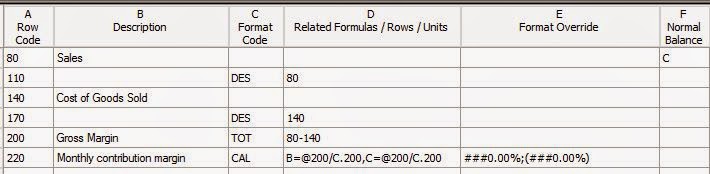
Use CAL for Calculations, instead of TOT for Totals. Performing complex math in a Row Definition requires the use of a CAL Format Code in Column C of the Row Definition.

Use the @ symbol to call out a specific row in a calculation. In order to include a reference to a specific row in a CAL formula, users must use the @ symbol. The format for usage is @row (i.e. @200).

Use a period separator to restrict output of a calculation to a particular column. In order to restrict the formula to a particular column, users must use a period separator, in much the same way periods are used in windows for file extension (i.e. .doc, .xls, .sql, etc.)  The format is column.row (i.e. C.200).

Use the = operator to define different formulas for specific columns. In order to define different formulas for different columns, users must use the = operator, in much the same way it is used in Excel. The format is column=formula (i.e. B=@200/C.200,C=@200/C.200)

Note: In this case, I have used an unnecessarily complicated solution to illustrate the flexibility of Management reporter. Simply typing @200/C.200, would produce identical results in this instance, as does typing B,C=@200/C.200…

This syntax can be very helpful when dealing with departmental break outs and budget versus actual columns.

Here is an illustration of these concepts in Management Reporter:


The output from this example is as follows:


Thursday, September 25, 2014

Management Reporter Installation Checklist

I have noticed numerous SOLID blog posts, which walk through the installation steps for Management Reporter!  The Dynamics Community does not disappoint - the level of sharing and collaboration frankly astounds me.   These blog posts include screen shots, and detailed instructions. 

Management Reporter installation woes still seem to be the source of many posts on the community forums.  The reason, the DEVIL is in the DETAILS.

What follows is a checklist I use when installing Management Reporter.  Prior to putting this checklist together, I routinely encountered issues when installing and configuring Management Reporter.   Without further adieu:

Make sure install user is Domain and Machine Administrator
Add Server Role - Web Server
Add Server Role - Application Server
Enable .Net 3.5.1 ASP.Net
Enable IIS 6 Metabase Compatibility Feature for IIS 7
Enable WCF HTTP Activation
Disable User Account Control
Reboot Machine (can try iisreset if not practical)
Run installation from a folder with short path-name
Run installation as administrator
Do NOT select NT AUTHORITY accounts - use an Active Directory Account created for this purpose.
Ensure the user you have running the application pool has "log on as batch job" rights in the local security policy of the machine.
Remember to Register Management Reporter - default installation is Evaluation Copy, no reminder to register, until the trial period expires!


Thursday, September 11, 2014

Management Reporter - The report has a reference to a dimension called % but this dimension is not available to company %

So, I was working with a client today, who had recently undergone training on Management Reporter.  During this training the client and I built a Balance Sheet and Income Statement for their main entity.  The client's homework was to do the Balance Sheet and Income Statement for a smaller entity on her own. Logically, the client copied components from the main entity, which uses the same Chart of Accounts with minor variations.  Here's where things went off the rails.

When the client tried to validate the report, she ran it, and received the following error:

The report has a reference to a dimension called Natural Acct but this dimension is not available to company HXXX.

I have seen problems with Dynamics SL making the transition from Legacy to Data-mart configuration throwing an eerily similar error, though not identical.  I have never seen this kind of problem with Dynamics GP.  

So, I went into Dynamics GP Setup > Company > Account format for both companies and validated they matched - or so I thought...

Turns out the formats differed ever so slighting in that in the main company database, the Main Account segment was named Natural Acct, and in the other database it was simply Natural.   We changed the segment descriptions to match exactly.  Then in Management Reporter went to Tools > Refreshed Cached Financial Data.  Viola - the report worked.

Be aware, if you are going to use Management Reporter to produce Consolidated financial statements, you want to make sure your companies' Account Formats MATCH exactly, not just constructively.