Recently, there have been a number of forum posts related
to cross-column equations (formulas) in Management Reporter. Users typically
want to perform a mathematical operation like division on a value from one
column and/or row to another column and/or row.
Users may even desire to perform numerous calculations in the
same row. The syntax requirements for this seem to be confusing folks, so I
wanted to provide a concrete tested example of this type of formula.
Here is an introduction to the core concepts in Management Reporter:
Use CAL for Calculations, instead of TOT for Totals. Performing complex math in a Row Definition requires the use
of a CAL Format Code in Column C of the Row Definition.
Use the @ symbol to call out a specific row in a calculation. In order to include a reference to a specific row in a CAL
formula, users must use the @ symbol. The format for usage is @row (i.e. @200).
Use a period separator to restrict output of a calculation to a particular column. In order to restrict the formula to a particular column,
users must use a period separator, in much the same way periods are used in
windows for file extension (i.e. .doc, .xls, .sql, etc.) The format is column.row (i.e. C.200).
Use the = operator to define different formulas for specific columns. In order to define different formulas for different columns,
users must use the = operator, in much the same way it is used in Excel. The format is column=formula (i.e. B=@200/C.200,C=@200/C.200)
Note: In this case, I have used an unnecessarily complicated solution to illustrate the flexibility of Management reporter. Simply typing @200/C.200, would produce identical results in this instance, as
does typing B,C=@200/C.200…
This syntax can be very helpful when dealing with
departmental break outs and budget versus actual columns.
Here is an illustration of these concepts in Management Reporter:
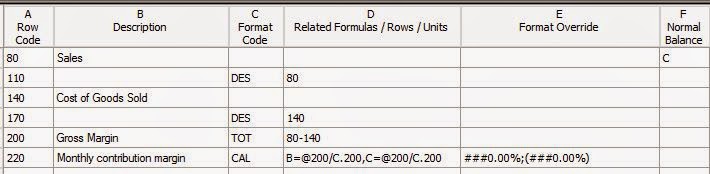
The output from this example is as follows:

