I discovered something some time ago, and could have sworn I wrote a blog article about it, because I thought it was a tip that should be shared with the world. Today, I stumbled across the same problem again, and went to look up my post... yes I refer back to my own posts to refresh my recollection from time to time.
Anyway, I discovered I had neglected to write an article about it, but found the issue mentioned in a broader article written by luminary Dave Musgrave called Understanding how Dynamics GP works with SQL
In this article Dave explains that since Dynamics GP grew up on databases like Btieve and Ctree, and these databases typically avoided the occurrence of NULL values in the data set by initializing number and currency fields with Zero and String fields with blanks. Consequently, Dynamics GP doesn't intuitively know how to deal with NULL values.
This is important for users who are working with SmartList tools like SmartList Builder or Designer.
One of the best inherent features in SmartLists is the ability to search fields based on values or the lack thereof. If a NULL value is returned in a SmartList field, then there is no way to search/restrict your results based on the return of a NULL value.
The easiest way to resolve this issue is during the creation of the view your SmartList is built on. If you have a field returning NULL values, it is best to transform these null values into blanks instead.
Here is an example of how to make this work.
Select
CASE WHEN TABLE.FIELD IS NULL THEN ''
ELSE TABLE.FIELD
END 'Field Label'
FROM TABLE
This will result in SQL and ultimately your SmartList column returning either nothing or the actual value in the field. The value nothing can be returned by searching for blanks in the field.
Failure to do this will both clutter your SmartList and limit the its functionality, so I highly recommend taking this into account when building SQL Queries, Views and SmartLists.
NOTE: I did in fact write a blog post about this last October, and apparently mislaid it. Here is a link.
No filters on Null Values in SmartLists
Showing posts with label SmartList Builder. Show all posts
Showing posts with label SmartList Builder. Show all posts
Friday, August 7, 2015

Wednesday, October 29, 2014
Foundation Query for Historical Fixed Asset Depreciation Reporting in SSRS or SLB
Prior to version 2013 of Dynamics GP there was not Historical Depreciation Reporting. Here is a query, which can be used as a foundation for reporting on depreciation using SmartList Builder or SQL Server Reporting Services (SSRS)
DECLARE @Year INT, @StartPeriod TINYINT, @EndPeriod TINYINT
Set @Year = '2015' --Sets the Year of
the Report
Set @StartPeriod =
'1' --Sets the
Starting Period of the Report
Set @EndPeriod = '12' --Sets the Ending
Period of the Report
select
FAM.ASSETID Asset_ID,
FAM.ASSETIDSUF Asset_Suffix,
FAM.ASSETDESC Asset_Description,
GLT.FAPERIOD 'Period',
GLT.FAYEAR 'Year',
--GLT.FA_Doc_Number, --Removes this column, not in versions prior to 2013
convert(char(10),GLT.DEPRFROMDATE,101) Dep_From_Date,
convert(char(10),GLT.DEPRTODATE,101) Dep_To_Date,
GLD.ACTNUMST Account,
GLM.ACTDESCR Acct_Description,
cast(GLT.AMOUNT as money) Amount
from FA00902 GLT
left join FA00100
FAM on GLT.ASSETINDEX
= FAM.ASSETINDEX
left join GL00100
GLM on GLT.GLINTACCTINDX
= GLM.ACTINDX
left join GL00105
GLD on GLT.GLINTACCTINDX
= GLD.ACTINDX
where FAYEAR = @Year
and FAPERIOD between
@StartPeriod and @EndPeriod
Order by
GLT.FAPERIOD,FAM.ASSETID,FAM.ASSETIDSUF,GLD.ACTNUMST
Friday, October 24, 2014
SmartList Builder - No filter on NULL Values
Today I was working on a project for a client who has a customization, which imports Manufacturing Orders into their system. The project involves a configurable product with a configurable Bill of Materials and Routing.
If a user incorrectly configures the routing options, we've found sometimes the Work Order is imported with an invalid routing. When this happens the result is a NULL value in the first routing sequence. The easiest way to identify these records and assign them a valid routing is using SmartList Builder. The problem with this is SmartList Builder does not allow a filter on NULL database values.
I routinely use validation columns in queries (i.e. when using a Union statement, I show Posted versus Unposted data, or Open versus History). Rather than create a validation column in my SQL view, I built the validation into the column using a CASE to return the word 'ERROR' when a NULL value was encountered.
Now, when there is a broken routing the word ERROR shows up in the SmartList, and we've built as SmartList with Reminder to make sure these don't slip the net.
Here's what this looks like.
If a user incorrectly configures the routing options, we've found sometimes the Work Order is imported with an invalid routing. When this happens the result is a NULL value in the first routing sequence. The easiest way to identify these records and assign them a valid routing is using SmartList Builder. The problem with this is SmartList Builder does not allow a filter on NULL database values.
I routinely use validation columns in queries (i.e. when using a Union statement, I show Posted versus Unposted data, or Open versus History). Rather than create a validation column in my SQL view, I built the validation into the column using a CASE to return the word 'ERROR' when a NULL value was encountered.
Now, when there is a broken routing the word ERROR shows up in the SmartList, and we've built as SmartList with Reminder to make sure these don't slip the net.
Here's what this looks like.
CASE when rtg.RTSEQNUM_I IS Null then 'ERROR'
ELSE rtg.RTSEQNUM_I
End Routing_Sequence,Monday, October 6, 2014
How To Create a SmartList using SmartList Builder and a SQL View
Creating a SmartList using SmartList Builder and a SQL View adds a wrinkle to the SmartList Design and Security Process. The purpose of this post is to provide a complete list of steps to perform this task. In short:
Here's a detailed overview with images...
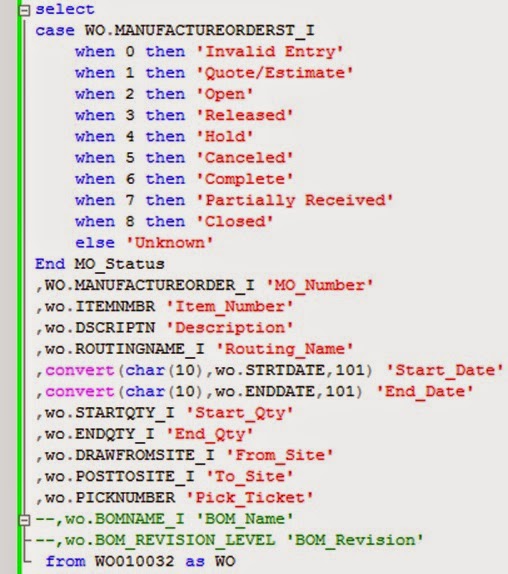
Create a SQL Query as a source for a View - this query should provide English language column names, text based statuses and use optimal field formats. Adding the table directly can create a view with column headers and data that don't make a lot of sense to a user.
Here is an example query, intended to provide Work Order Status information in SmartList format:
Use the SQL Query to create a SQL View - you will need to run this against any company database you wish to access this SmartList from.

Validate the existence of the View(s)

Grant Select Access for DYNGRP on SQL View
Grant Permission in SmartList Builder Security for the SQL View. From Great Plains navigate to Microsoft Dynamics GP > SmartList Builder > Security > SQL Table Security

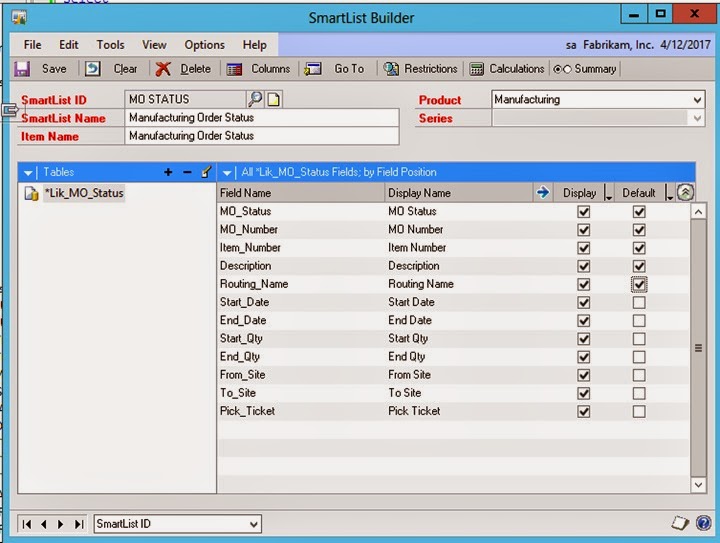
Create a New SmartList. In Great Plains navigate to Microsoft Dynamics GP > Tools > SmartList Builder > SmartList Builder and add the SQL View and its Columns by clicking the Plus Sign as highlighted in the image:

Choose the columns to enable for the SmartList and the default columns.

You can use the display options and defaults in this screen to change the display format. This is especially useful for changing the default currency format to numeric on quantity fields.
When you next open SmartList, you will receive the following dialogue. Click Yes to enable the newly created SmartList.


Now that you've added your SmartList, refer to this blog post on how to grant Security for the users who require access:
SmartList Security Setup
- Create a Query
- Create a SQL View
- Grant Access to the View
- Provide Access to the SQL View for SmartList Builder
- Create a SmartList
- Add Fields from the SQL View to the SmartList
- Make Changes to SmartList Builder
- Validate SmartList
- Grant Access to SmartList
Here's a detailed overview with images...
Create a SQL Query as a source for a View - this query should provide English language column names, text based statuses and use optimal field formats. Adding the table directly can create a view with column headers and data that don't make a lot of sense to a user.
Here is an example query, intended to provide Work Order Status information in SmartList format:
Use the SQL Query to create a SQL View - you will need to run this against any company database you wish to access this SmartList from.
Grant Select Access for DYNGRP on SQL View
grant select on Lik_MO_Status to DYNGRPGrant Permission in SmartList Builder Security for the SQL View. From Great Plains navigate to Microsoft Dynamics GP > SmartList Builder > Security > SQL Table Security
Create a New SmartList. In Great Plains navigate to Microsoft Dynamics GP > Tools > SmartList Builder > SmartList Builder and add the SQL View and its Columns by clicking the Plus Sign as highlighted in the image:
Choose the columns to enable for the SmartList and the default columns.
You can use the display options and defaults in this screen to change the display format. This is especially useful for changing the default currency format to numeric on quantity fields.
When you next open SmartList, you will receive the following dialogue. Click Yes to enable the newly created SmartList.
Validate the SmartList existence and configuration by browsing to the SmartList.
Now that you've added your SmartList, refer to this blog post on how to grant Security for the users who require access:
SmartList Security Setup
Subscribe to:
Posts (Atom)