Showing posts with label Query. Show all posts

Wednesday, October 29, 2014

SQL Query MOJO - Use Excel to build a redundant query

From time to time, I find it necessary to create a query, which has a redundant element.  Something like a user hands me an Excel based list, which contains customer email addresses...  I am sure I am not the first person to figure this out, but I was quite pleased with myself when I did.

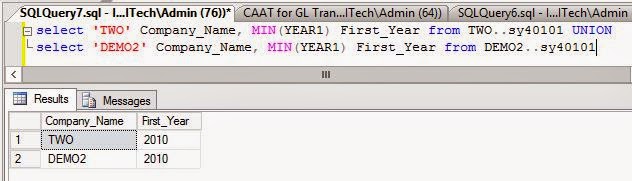
It is possible to use Excel's concatenation feature to build a redundant query. In the example below, I was asked by a new controller to tell them what the first year each company database was placed in use, at an organization which had dozens of company databases.  I did a simple select statement for INTERID on the SY01500 table to create a list of company database ID's as a foundation for this query. 


I then pasted the ID's into Excel and wrote a query using the list field to pull the first financial year from each database.  The list of databases in my test system is short, and I don't want to publish a client's list of company database ID's so my example only includes two databases. 

Monday, October 27, 2014

CASE Statement for Inventory Item Master Item Types [IV00101].[ItemType]

I have amassed a number of useful CASE statements, which can be incorporated into SQL queries run against Dynamics GP. When Querying the Item Master Table in Dynamics GP (IV00101), use the following case statement to return text versions of the default Item Type field (ItemType):

case [IV00101].[ItemType]
      when 1 then 'Inventory'
      when 2 then 'Discontinued'
      when 3 then 'Kit'
      when 4 then 'Misc Charges'
      when 5 then 'Services'
      when 6 then 'Flat Fee'
      else 'ERROR'
end   ItemTypeText

Saturday, October 4, 2014

SQL Query Fundamentals (Part 2)

In my post SQL Query Fundamentals (Part 1) I covered a number of "fundamental" elements of SQL Query Design:

  1. Select statements
  2. Aliases
  3. Cases
  4. Casting
  5. Converting
  6. Table Joins
  7. Where Clauses
This post is intended to amplify and expand on these concepts to help resolve common problems with Query Design for practical purposes in concert with Dynamics GP.  

Dynamics GP is designed and built to support exceedingly large business with massive transaction loads.  Part of this architecture is the use of Work, Open and Historical tables to house data.  Typically Work Tables contain transactions being entered, which have not been posted.  Open tables contain transactions which have been posted in the current (Open) fiscal or calendar year.  Historical tables contain transactions from past (Closed) fiscal or calendar years.  

Dividing data into these categories and storing the data in different tables improves performance by ensuring users entering and accessing these various data types are not competing for the same resources.

As a consequence of this design and implementation, in order to produce a report, which contains all transaction data, you must combine the data from these various tables. This is not the same thing as a Join.  Typically, a join is intended to link tables together, so you can present additional data about the records you are interested in, like the address records associated with customer or vendor records.

When you desire to present data from two tables containing the same fields in a different state, like open vs. historical data, you do not use Left, Right, Inner or Outer Joins. You use Union statements.  In order to use a Union statement, the columns for the two tables must "constructively" match - there must be the same number of columns with the same data types.

Here's an example:


Now back to fundamentals.

First, you will note there is some Green text in the first line of this query.  This text has been commented out, and is functionally invisible to SQL. This can be accomplished by beginning a single line with two hyphens (--). Multiple lines can be commented by starting with /* and ending with */.  

I typically use comments liberally in queries, and you should develop this habit too. It is invaluable when coming back to a query later, especially much later, to know what you were thinking when you designed it. It is also helpful to comment the mechanisms, and purposes of joins, details about the tables and fields involved. This is especially useful in environments where you are part of a team.

You will notice the first column - Source, identifies the data source of a particular record. Using this simple feature is absolutely critical when presenting data from multiple tables. You simply quote the data source and alias the column.  In this case the sources were Inventory and Manufacturing tables which contain similar data. In other cases it may be Open and Historical. In either case, adding a column to denote the source, makes it easy to identify the source of the data.

The cost columns have a new Cast statement, which ensures they are presented in Money format (currency).

You may also notice there is a new kind of join in this statement - a Left Join. Left Joins are handy for adding fields from tables, where a value may or may not exist for the joining records. Inner Joins, require the presence of matching data, so using an inner join instead of a Left Join in this case, could restrict the records returned. If there is not a matching data point in the table you used a Left Join to connect, you will see NULL in the field. If you used an Inner Join, you would suppress the entire row, where a NULL value occurs.

Because this post is Dynamics GP specific I will explain the reason a left join was necessary. Since Dynamics GP can have a 66 character account number with up to 10 segments, and accounts are used in numerous places in Dynamics GP, Great Plains uses an Account Index instead of storing the whole account. This data is stored in the GL00100 table in the ACTINDX field (GL Master Records). More importantly, it is stored in the GL00105 table, which also includes the ACTNUMST field; Account Number String field. By Left Joining the GL00105 table, it is possible to include the actual account number in the query results.

Unlike JOINS, UNION statements connect tables without requiring the presence of matching values in fields. You could literally UNION queries of like fields in your Vendor and Customer tables. There are two types of UNION statements; UNION and UNION ALL.  UNION queries return unique values, and UNION ALL queries will include duplicate records, so if you want all the data, you'll need to use a UNION ALL statement.

In this case, Dynamics GP holds Standard Cost Revaluation Records in both Inventory and Manufacturing tables, because there are two tools to Revalue Standard Costs. In order to display pending Standard Cost changes, it is imperative to present the data from both sources.  


Finally, the last line in this query is an Order by statement.  Order by statements instruct the query to return the data in a particular order. Simply type Order by, and then specify the columns you want to sort your data by, separating them by commas.  The default sort order is Ascending. You can specify the sort order by typing ASC or DESC (short for Ascending and Descinding) after the column name.

Hopefully these posts have helped speed you on the way to learning SQL Query Fundamentals.


Sunday, September 28, 2014

SQL Query Fundamentals (Part 1)

When I was a fledgling consultant, SQL was not the ubiquitous backbone of Dynamics GP that it is today.  Back then, Great Plains ran on C-Tree and Btrieve databases engines.  Microsoft Access, connected to these databases via ODBC, was the power tool for data analysis and custom reporting.

Using Microsoft Access was fairly straight-forward.  Adding tables to a query immediately displayed the fields in the table. Position the main table on the left, and the related table(s) to the right, and drag an arrow from the common fields in one table to the other(s), and instant join. If you didn't get the data you wanted, simply right click on the connecting arrow and choose from options to connect the tables displayed in English.

Now, one of the most versatile tools in the Dynamics GP toolkit, is SQL Query Analyzer. In stark contrast to Microsoft Access, when you open SQL Query Analyzer, you are greeted with a blank screen.  This is reminiscent of the days of DOS, when you started your computer, and were rewarded with a blinking command prompt.

The safest of SQL Scripts are Select Statements.  This doesn't mean they are foolproof or without risk. If you execute a select statement on a big enough table, or link a few large tables together and throw in a WHERE clause with an AND or an OR, and you can cripple SQL performance.

Here's a sample SQL script for to illustrate some key concepts:


If you analyze the results of this query, you'll notice columns are returned side-by-side; the first iteration of each column has been transformed using various methods and the second is displayed as it normally appears without modification. 

Doc_ID vs. SOPNUMBE 
Doc_Type in text vs. SOPTYPE as integers
Doc_Date in US Format vs. DOCDATE in SQL Date/Time format 
Line_No in Integers vs. LNITMSEQ in increments of 16,384

So let's talk fundamentals:

The first step in query design process is to select some data from a table. This is typically accomplished using a simple select statement, akin to "Select COLUMN from TABLE," or "Select * from TABLE." What is important to know is informing SQL what table(s) you desire to select data from allows SQL to help you with the process.  Once SQL knows the table(s) you're querying against, it will prompt you with valid column names, which belong to these tables.

Enter the humble asterisk, Shift+8 or *. A.K.A. "star" as in *.* or "star dot star." In the DOS days, *.* was code for show me everything.  The humble asterisk performs much the same function in SQL. 

Starting with all fields is advisable, as this will allow you to see all the columns and data in a table, which will help you build a better query.  If the table is big, you'll want to add a WHERE clause (at the end of the query) to restrict the data set, so you're not tying up system resources - see WHERE clauses below.

In the end, you won't need every column in every table you've joined, you're typically looking for very specific data, which is why you joined the tables in the first place. 

Returning specific fields requires being very specific.  To return only the columns you desire, you need to call them out by name in TABLE.COLUMN format. It's not always absolutely necessary, but becomes absolutely critical when your joined tables contain the same columns, and your're returning this data. 

Failure to spell out the complete table and column can result in errors about ambiguity. Errors about ambiguous data is SQL saying, I see you're asking for SOPNUMBE, but that column is in both tables, which one did you mean? Since joining tables requires matching columns, it is typical for the tables to have duplicate columns. You should separate columns with a comma (i.e. TABLE-A.COLUMN-A as ALIAS-1, TABLE-A.COLUMN-B as ALIAS-2)

Additionally, you're going to want to produce usable data, and not all data in SQL makes sense as it is stored.  So, lets talk transformation...

Aliases are your friend.  It is easy to ALIAS a column, which changes the display name, not the actual name.  Just type whatever name you'd like to appear as the column name (header) to the right of the specific column.  

The same method can be applied at the table level.  You can type a more understandable and/or easier to remember name to the right of the table(s) you are selecting data from. You may have noticed, I typed AS between the table name and the associated aliases. When creating an alias, the word AS is totally optional.

Cases are sometimes absolutely necessary.  A CASE evaluates the values in the a table and performs actions, like transformation based on these values.  In my example query, the CASE statement looks at the value returned in the SOPTYPE field and converts it to understandable text.  Of course you need to know what these values equate to, in order to write your case, so you'll want to do your research prior to finalizing your query.

Conversions and equations can help transform data from one type or format to another.  In this query, conversions and equations were used to change the default date format "YYYY-MM-DD HH:MM:SS.HoS" for the DOCDATE field to a common and clearer US date format "MM/DD/YYYY".  Additionally, the LNITMSEQ field is converted from increments of 16,384 to simple and understandable integers. Conversions can also be used to trim trailing spaces, select part, rather than all of a data set and other very useful operations.

Joins allow related tables to be linked, so reports can include all the required data, not just the data in the core table.  In this instance, the tables have been joined using an "Inner Join" on Sales Order Number and Sales Order Type. The SOP10100 table contains Sales Order Header information and the SOP10200 table contains Sales Order Lines.  These tables are the Dynamics GP Sales Order open tables, and do not contain historical data. 

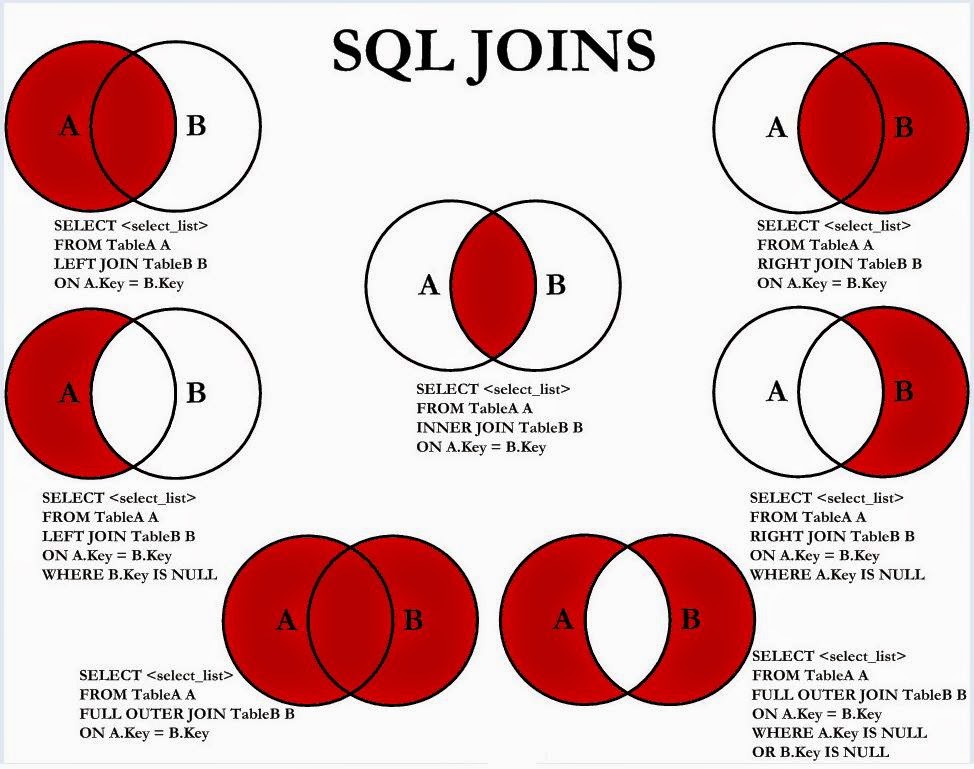
This query makes use of an Inner Join.  Inner Joins include data in both linked tables where there are matching records in the linked fields in both tables. There are many kinds of Joins, with various uses.  The chart below is one of the best I've seen on explaining these various joins and their purpose. The Inner join is visually represented in the center of the illustration below, which shows the data set returned is only data which overlaps in the two tables. In my career, I have found a practical use for every join illustrated below.


Finally, WHERE clauses allow you to specify/restrict the data you would like displayed. Because of the WHERE clause, used in the sample query, the query only displays data for one Sales Order. WHERE clauses are also useful when defining date ranges, or identifying orders containing specific items, or entered on for specific customers, etc.

This overview should provide the fundamentals for writing queries to retrieve data from Dynamics GP.  In order to make use of this tool, you must know or identify where to find the data you're looking for.  I can think of no better source for such information than the following link.


There are plenty of table reference sites out there, but Victoria's site is well organized, and contains other useful information like the translations for statuses and document type field data, which is instrumental in writing CASE statements.