First, an acknowledgement. This issue only comes up in scenarios where users of Management Reporter have very complex equations on a single row.
A client recently ran into a problem with Management Reporter, I’ve only seen once before. I couldn't find my notes on this problem, so I had to rework the solution. Now I’ve had to resolve it again, I thought I would save anyone with the same issue the time. Here’s an overview of the issue and resolution. I hope you might find this helpful.
What's the best way to add new rows within the Management Reporter Dimensions window? In this window, you can define the rows, segments and other dimensions included in a row format. The problem is, after you put in a few lines, you seem to run out of room. The good news, is you’re not out of room, it’s just the interface is poorly designed - Microsoft really should do something about this... wink
You will notice at the top of the window, similar to Excel, you have a Cell field, which shows the extended “equation”. You can enter additional information into the Cell, and it will create new lines in the Dimension window, so you can continue to add unlimited lines in this window.
For example, I added accounts one by one, into the window (1500, 1600, 1700… until I ran out of room. I then went to the equation cell and added manually +Segment1 = [1800], and when I opened the Dimension window, there was a new line with +Segment1 = [1800]. I was then able to edit this line to include any dimension I wanted.
So, you have two options, use the example of a similar dimension to manually add the specific dimension you want to add, or use a very basic “dummy” input to add new rows for editing.
Monday, January 5, 2015
Friday, December 5, 2014
Next Routing Sequence for Work Orders in Dynamics GP
I was asked to create a SmartList using SmartList Builder, which, among other things, would show the next Routing Sequence for Work Orders. The client wanted the Work Center Description and not the Sequence Number.
In the end I had to nest a query within a nested query to get the required results. Here is the core of the query - feel free to use it in your own endeavors:
and WR.RTSEQNUM_I = A.Sequence
In the end I had to nest a query within a nested query to get the required results. Here is the core of the query - feel free to use it in your own endeavors:
Select A.MANUFACTUREORDER_I,WR.RTSEQDES_I
From WR010130 WR
inner join
(Select MANUFACTUREORDER_I,MIN(RTSEQNUM_I) Sequence
from WR010130 where
DONECB_I !=1 Group
by MANUFACTUREORDER_I)
A
on WR.MANUFACTUREORDER_I
= A.MANUFACTUREORDER_I
"You do not have access privileges needed to change this quantity" in GP Manufacturing
In Dynamics GP, as a general rule, a user assigned the POWERUSER role or the sa account are "all powerful," and can perform any task. What happens when the sa or a POWERUSER tries to change the ending quantity on the Manufacturing Order and they receive the following error. "You do not have access privileges needed to change this quantity?" I have seen this issue a couple of times in the forum recently, so I thought it would be prudent to write a blog article on the topic.
There is a simple cause and a simple solution to this problem. Dynamics GP Manufacturing was once a third party product (a very long time ago), and a programmer, was likely asked to make sure that a user could not just change the quantities on a Manufacturing Order. So this programmer created a feature, outside typical GP security setup to control access to Manufacturing Order quantity field changes.
In the end, what was produced is security more akin to Hold Processing or Tolerances in various Financial and Distribution Modules; a security setting that exists at the module configuration level and not at the System Security level.
When the user receives the "You do not have access privileges needed to change this quantity." error, either they have not be granted access, or this feature hasn't been set up at all - it is typical the latter. If you implement GP Manufacturing, you should add explanation and configuration of this feature to your setup checklist.
Here's an overview of how to set this feature up:
First - navigate to Manufacturing > Setup > System Defaults > MO Schedule Prefs and select your Default Settings. Enter a Process Security ID for Manufacturing Qty Overrides.
You should receive a dialogue box indicating the ID doesn't exist, and asking if you would like to create it. You should click Add.
Clicking Add will trigger System Security, if a System Password has been configured. So, you'll need to know this password before you begin to setup Process Security.
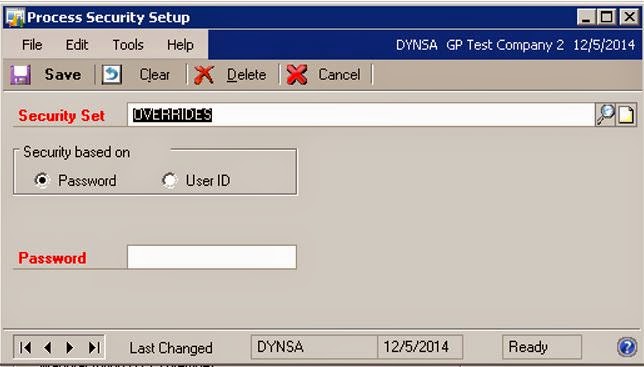
Once you have provided the correct system password, the Process Security Setup window will open. At this point you have a decision to make. Configure security to prompt for a password when a Manufacturing Quantity is changed, or configure security to only allow approved users to change Manufacturing Quantities.
While the easiest to setup and maintain option is Password control, passwords have a tendency to 'escape into the wild' and the next thing you know, your control is control in name only. I am a fan of configuring user specific control. If you go the User ID route, you should add this step to your New User Check List. If you don't have a New User Check List, create one.
If you go the Password route, simply enter a password here, and distribute the password to personnel authorized to change quantities on Manufacturing Orders. If not, selecting the User ID radio button will bring up a list box, where User ID's authorized to change quantities on Manufacturing Orders can be inserted.
I am not a big fan of the design of this screen. In order to add users, you must click on the Magnifying glass, look up a user and select it, you cannot tab through the fields typing in User ID's.
What is not immediately obvious, is opening the Process Security setup window, which opens automatically, when prompted by initiating configuration, is there is no clear way to open this window, after initial setup has been completed. So, a shortcut to this window should be added to your home screen.
This window can be accessed under Manufacturing > Setup > Process Security. I think it would be better to add a shortcut from this window.
To add a shortcut to your Home Screen, first, go to your Home Screen. Then right click in the Navigation Pane and select Add > Add Window.
This will open up the Add Window Shortcut Window. To Add the Process Security Setup window, you must browse to and select Manufacturing > 3rd Party > Process Security Setup (Alphabetically) and click Add.
Earlier I mentioned the reason this feature fell outside normal GP System Security setup, was due to the fact Manufacturing was once a 3rd party application - you will note, many of the Manufacturing Windows are still listed as 3rd party. This is something to be aware of when working with Manufacturing Windows, Reports and the like.
Now that you've added this shortcut, you're ready to move forward using this feature.
There is a simple cause and a simple solution to this problem. Dynamics GP Manufacturing was once a third party product (a very long time ago), and a programmer, was likely asked to make sure that a user could not just change the quantities on a Manufacturing Order. So this programmer created a feature, outside typical GP security setup to control access to Manufacturing Order quantity field changes.
In the end, what was produced is security more akin to Hold Processing or Tolerances in various Financial and Distribution Modules; a security setting that exists at the module configuration level and not at the System Security level.
When the user receives the "You do not have access privileges needed to change this quantity." error, either they have not be granted access, or this feature hasn't been set up at all - it is typical the latter. If you implement GP Manufacturing, you should add explanation and configuration of this feature to your setup checklist.
Here's an overview of how to set this feature up:
First - navigate to Manufacturing > Setup > System Defaults > MO Schedule Prefs and select your Default Settings. Enter a Process Security ID for Manufacturing Qty Overrides.
You should receive a dialogue box indicating the ID doesn't exist, and asking if you would like to create it. You should click Add.
Clicking Add will trigger System Security, if a System Password has been configured. So, you'll need to know this password before you begin to setup Process Security.
Once you have provided the correct system password, the Process Security Setup window will open. At this point you have a decision to make. Configure security to prompt for a password when a Manufacturing Quantity is changed, or configure security to only allow approved users to change Manufacturing Quantities.
While the easiest to setup and maintain option is Password control, passwords have a tendency to 'escape into the wild' and the next thing you know, your control is control in name only. I am a fan of configuring user specific control. If you go the User ID route, you should add this step to your New User Check List. If you don't have a New User Check List, create one.
If you go the Password route, simply enter a password here, and distribute the password to personnel authorized to change quantities on Manufacturing Orders. If not, selecting the User ID radio button will bring up a list box, where User ID's authorized to change quantities on Manufacturing Orders can be inserted.
I am not a big fan of the design of this screen. In order to add users, you must click on the Magnifying glass, look up a user and select it, you cannot tab through the fields typing in User ID's.
What is not immediately obvious, is opening the Process Security setup window, which opens automatically, when prompted by initiating configuration, is there is no clear way to open this window, after initial setup has been completed. So, a shortcut to this window should be added to your home screen.
This window can be accessed under Manufacturing > Setup > Process Security. I think it would be better to add a shortcut from this window.
To add a shortcut to your Home Screen, first, go to your Home Screen. Then right click in the Navigation Pane and select Add > Add Window.
This will open up the Add Window Shortcut Window. To Add the Process Security Setup window, you must browse to and select Manufacturing > 3rd Party > Process Security Setup (Alphabetically) and click Add.
Earlier I mentioned the reason this feature fell outside normal GP System Security setup, was due to the fact Manufacturing was once a 3rd party application - you will note, many of the Manufacturing Windows are still listed as 3rd party. This is something to be aware of when working with Manufacturing Windows, Reports and the like.
Now that you've added this shortcut, you're ready to move forward using this feature.
Subscribe to:
Comments (Atom)