Showing posts with label General Ledger. Show all posts

Sunday, June 7, 2015

Paste General Ledger Transactions from Excel into Dynamics GP 2013 R2 and Later

There were so many features introduced in Dynamics GP 2013 and 2013 R2, it was genuinely hard to keep track of them all. One of these features was the ability to Paste from Excel to the General Ledger Transaction Entry window.

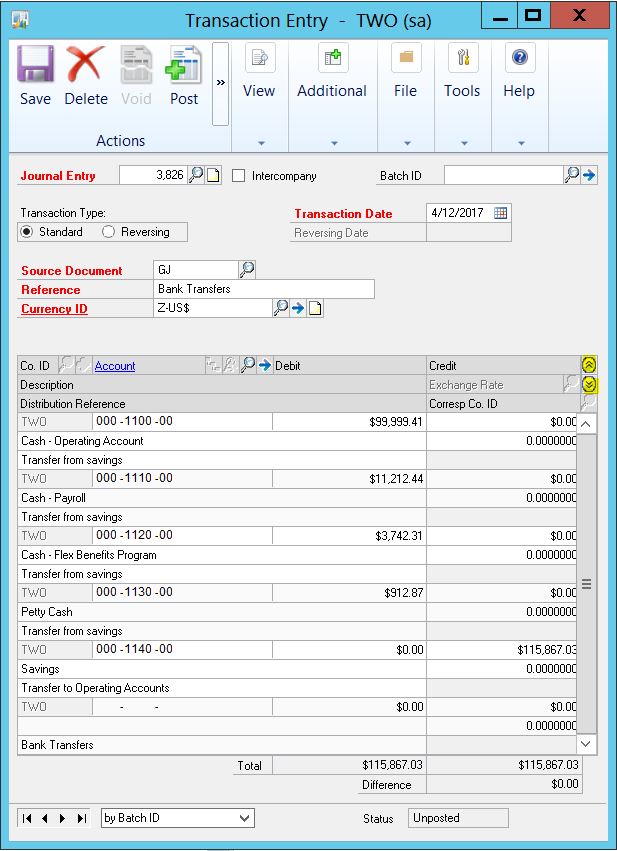
Pasting from Excel to the General Ledger Transaction Entry window is accomplished by clicking on the Paste button (complete with Excel logo), as shown in Image 1 below. The Transaction Entry window navigation is Financial > Transactions > Financial > General, and will look much like the image below. 

NOTE: Your user experience may vary - I have some 3rd party products installed, so my Paste button was small and hidden, yours may very well be front and center.
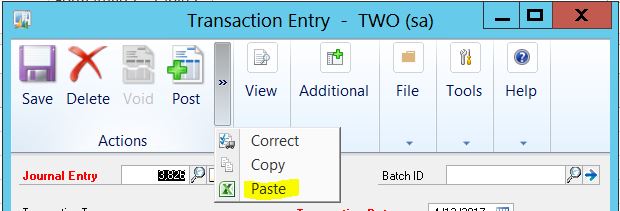

Image 1

Data cannot be pasted into the Header fields of a General Ledger Transaction - seem Image 2 below. So, it is important these required fields be filled out manually prior to pasting the transaction details in the Transaction Line entry portion of the window.


Image 2

Once the header information has been manually entered, you can select the data from Excel and paste it into the Transaction Line entry section of the Transaction Entry window. It is important to initiate the paste in the first field of the Line Entry section - see Image 3 below.


Image 3

Image 4 below, is a 'Paste from Excel Template'. The headers are simply to help identify what data goes where.  When pasting, only the data needs to be selected and copied.  

NOTE: The first column maps, in my opinion, counter-intuitively to the Distribution Reference (not the Account Description - I have seen some conflicting information online).


Image 4
Once you have your desired General Ledger transaction data is selected in Excel, simply right click and choose Copy from the menu (or use Ctrl + C). Then move to the first field of the Line entry section of the Transaction Entry window (make sure you have already filled in the required header data), and click the paste button, which is located in the Menu Bar or Action Pane in the header (right clicking and pasting will not work). If you are unsure of where to start your paste, refer to Image 3 above. If you can't find the Paste button, refer to Image 1 above.

Image 5
The data should look substantially like Image 5 above. I have collapsed the lines, using the chevron icons to the extreme right of the headers in the line entry section of the window in order to show the matching transaction. Expanding the lines will show the Distribution Reference data was also successfully imported - see Image 6 below.

Image 6

ERRORS & TROUBLESHOOTING

If you have your Excel file format wrong, or selected the headers during the copy process, you will be instantly rewarded with a Validation report indicating what's wrong with your data.


Image 7
In the example displayed in Image 7 above the description column of my Excel template file was pasted into the account field by the utility, which caused a cascading failure of all other data, putting it out of place.

NOTE: The Template format is critical to successfully copying data from Excel. It is also important, not to select the column headers when copying, as they are unnecessary, and will throw the import off. It is also unnecessary to have dollar values in every import field; therefore, zero dollar values should not be entered in the debit or credit columns. Do not select lines below your data set, creating blank rows when pasting data from Excel can cause errors when saving and posting

Infrequently for most, and more frequently for beginners you may encounter the following error: 
The stored procedure glpPostBatch returned the following results: DBMS: 0, Microsoft Dynamics GP: 20052. The "More info" button displays: glpPostAccount: Error occurred NULL parameter.
The typical cause for this error is the inclusion of a line or lines below the pasted data in the Transaction Entry Line entry section, typically blank line(s).  It is cheap insurance to right click and delete the last row in this window, after pasting your data from Excel.

Recently, a user reached out to me to report they had received the following error when attempting to paste a transaction:


Here is a link to a blog article, which ultimately resolved the issue:

Cut and Paste Blog Article

The core problem was this "new users" was not granted access to the error report in Image 7 above.

I hope this How To on the Excel Paste feature gets you where you're going.


Monday, November 3, 2014

Is there a report to relate a General Ledger Journal Entry to a Manufacturing Order in Dynamics GP? - SQL

This information can be found by clicking on Inquiry > Manufacturing > Manufacturing Orders > Order Activity. This is a great screen, which a user can employ to drill back to the Journal Entry that was created by the transaction that is listed on this window. Once there, highlight the transaction and click the blue arrow on top tool bar of scrolling window to identify the Journal Entry. 

That being said, while this approach can get you from a particular Manufacturing Order to the related Journal Entry (Entries), it does not support rapid analysis of high transaction volumes. 

The following query links Inventory transactions in the Manufacturing Order Activity table MOP10213 to the Journal Entry information contained in the HITB table SEE30303 - obviously HITB must be deployed for this to work. Additionally, only detail transactions posted after the initialization of the HITB tool will be available for linking.

SELECT 
A.MANUFACTUREORDER_I MO_Number,
CASE A.MO_ACTIVITY_REASON_I
      WHEN 34 THEN 'Issue'
      WHEN 38 THEN 'Raw Material Relief'
      WHEN 39 THEN 'Finished Good Post'
      ELSE convert(Varchar(2),a.MO_ACTIVITY_REASON_I,1)
END AS Reason_Code,
CASE A.DOCTYPE
      WHEN 1 THEN 'IV Transaction'
      ELSE 'Not An Inventory Transaction'
END AS Document_Type,
B.DOCNUMBR Document_Number,
convert(varchar(10),B.DOCDATE,101) Document_Date,
B.ITEMNMBR Item_Number,
B.QTYBSUOM*B.TRXQTY AS Quantity,
C.JRNENTRY,
C.GLPOSTDT,
C.TRXREFERENCE
FROM [MOP10213] AS A
LEFT JOIN IV30300 AS B
ON A.IVDOCNBR = B.DOCNUMBR
Left Join SEE30303 as C
on B.DOCNUMBR = C.DOCNUMBR
WHERE A.DOCTYPE = 1
ORDER BY A.MANUFACTUREORDER_I, A.IVDOCNBR

Thursday, October 30, 2014

General Ledger Transactions and Line Totals per Day

Recently I answered a forum post by a user who wanted to know the number of transactions by module in a given day.  I authored a series of queries which allow a user to input a date and execute the query. 

The queries identify the number of unique transactions and the number of lines in the table. Dividing one by the other will reveal the average lines per transaction.  

This query reveals the Number of General Ledger Journal Entries on a given day and the number of overall lines.

DECLARE @Date as DATETIME
SET @Date = '04/12/2017'

/*Journal Entries*/
select sum(a.Journal_Entries) GL_Transactions from (
select count(c.GL_Transactions) Journal_Entries from (Select COUNT(jrnentry) GL_Transactions FROM GL20000 where TRXDATE = @Date group by JRNENTRY) c
Union All
select count(c.GL_Transactions) Journal_Entries from (Select COUNT(jrnentry) GL_Transactions FROM GL30000 where TRXDATE = @Date group by JRNENTRY) c ) a
/*GL Transaction Lines*/
select SUM(a.GL_Trx_Lines) GL_Trx_Lines from (
Select count(JRNENTRY) GL_Trx_Lines FROM GL20000 where TRXDATE = @Date group by TRXDATE
Union All

Select count(JRNENTRY) GL_Trx_Lines FROM GL30000 where TRXDATE = @Date group by TRXDATE) a